Flash the firmware
You install Glance Box through the update page of the stock firmware, in your browser.
Get the file
- Open the latest release and download
glancebox-ultra-<version>.bin.
Upload it
- Power the display and let it join your Wi-Fi with the stock firmware. Its IP address is shown on the display (or in your router's device list).
- Open
http://<display-ip>/in a browser in the same network. -
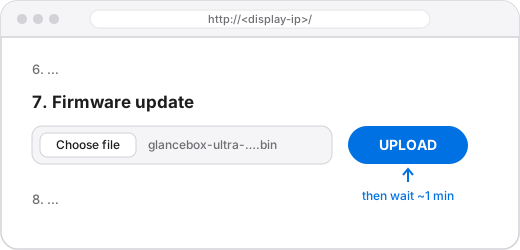
Find the firmware update section. On a tested Ultra it is called "7. Firmware update" and has an UPLOAD button.
-
Choose
glancebox-ultra-<version>.binand start the upload. - Wait about a minute and do not unplug the display. It restarts on its own.
Upload rejected?
Then nothing has changed and the display keeps the stock firmware. Check that you downloaded the .bin for the Ultra and that the download finished.
After the restart the display shows "Glance Box setup" and a Wi-Fi name like GlanceBox-A1B2. That is the next step.