homeassistant
What it shows
The current state of up to six entities from your Home Assistant, for example solar power, temperatures or open windows.
- Layout
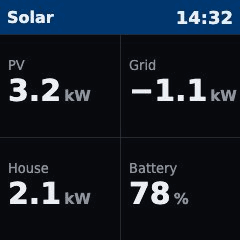
tiles: one to four large values. One value fills the screen, two are stacked, three are one wide tile above two, four are a 2x2 grid. Each tile has a small grey label and the value with its unit below it. - Layout
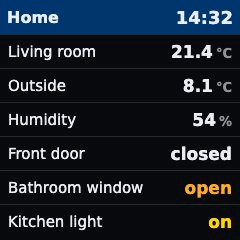
list: up to six rows, the label on the left, the value on the right. - Numbers are rounded: whole numbers stay whole, otherwise one decimal place, or exactly
decimalsif you set it. Values inWorWhfrom 1000 on are shown askWorkWh. Negative values get a real minus sign (−1.1 kW). Withlang: dethe decimal separator is a comma. - Words instead of on/off: door, window, opening and garage door sensors show
open/closed, andopenis orange. Motion, occupancy and presence sensors showdetected/clear. Lights, switches,input_boolean, fans and other binary sensors showon/off;onis yellow for lights and switches. Any other text is shown as Home Assistant sends it. - Label: your
label, otherwise the entity's friendly name in Home Assistant, otherwise the entity id. Long labels are cut off with…. - Wide values: long numbers get a smaller font. Long text is shortened with
…, so it stays inside its tile or row. - One entity unavailable: that cell shows
n/ain orange, the others keep working. An entity that does not exist showsmissingin orange. - No connection: an orange notice
Cannot reach Home Assistantwith the time of the last attempt (As of 14:32). The page never keeps showing old values. - Token not accepted: an orange notice
Token rejectedwithCheck the long-lived access token.
The header never turns red.
What you need
- A running Home Assistant that the Glance Box server can reach over the network.
- A long-lived access token from a Home Assistant user.
- The entity ids you want to show, for example
sensor.pv_power. You find them in Home Assistant under Settings → Devices & services → Entities.
1. Create a user for Glance Box (recommended)
A token can do everything its user can (see Privacy & security). So create a separate user for the display instead of using your own account: in Home Assistant go to Settings → People → Add person, turn on Allow login, and give it a user name and password. Leave Administrator off.
2. Create a long-lived access token
Log in to Home Assistant as that user. Click your user name at the bottom left, open the tab Security, scroll to Long-lived access tokens and click Create token. Give it a name such as Glance Box and copy the token. Home Assistant shows it only once.
3. Put the address and token in .env
Put both in the file .env next to docker-compose.yml:
HA_URL=http://homeassistant.lan:8123
HA_TOKEN=<the token>
Use the address of your Home Assistant in the home network, without /api at the end. In config.yaml you only write ${HA_URL} and ${HA_TOKEN}, see Secrets and environment variables.
Example
Four values as tiles:
- type: homeassistant
  url: ${HA_URL}
  token: ${HA_TOKEN}
  title: Solar
  lang: en
  refresh: 30
  entities:
    - entity: sensor.pv_power
      label: PV
    - entity: sensor.grid_power
      label: Grid
    - entity: sensor.house_power
      label: House
    - entity: sensor.battery_level
      label: Battery
Six rows as a list, using the names from Home Assistant:
- type: homeassistant
  url: ${HA_URL}
  token: ${HA_TOKEN}
  title: Home
  entities:
    - sensor.living_room_temperature
    - sensor.outside_temperature
    - sensor.living_room_humidity
    - binary_sensor.front_door
    - binary_sensor.bathroom_window
    - light.kitchen
Options
| Key | Default | Meaning |
|---|---|---|
url |
Address of your Home Assistant, starting with http:// or https://, without /api. Required. Best as ${HA_URL} from .env. |
|
token |
Long-lived access token. Required. Always as ${HA_TOKEN} from .env, never written into config.yaml. |
|
entities |
List of 1 to 6 entities. Required. Each entry is either an entity id (sensor.pv_power) or a mapping with entity (required), label and decimals. An entity id looks like domain.name with lower-case letters, digits and _. |
|
entities[].label |
friendly name from Home Assistant, otherwise the entity id | Your own label for this entity. |
entities[].decimals |
whole numbers stay whole, otherwise 1 | Decimal places, 0 to 3. |
layout |
tiles with 1 to 4 entities, otherwise list |
tiles or list. tiles allows at most 4 entities. |
title |
Home Assistant |
Header text. |
lang |
top-level lang |
de or en. Sets all texts and the number format. |
refresh |
refresh default |
We recommend 30. The page asks Home Assistant once per entity on each refresh. |
duration |
interval |
How many seconds the page stays on the display. |
Setup
- Put
HA_URLandHA_TOKENin.envas described above. - Add the example to the
pages:list inconfig.yamlwith your entity ids. - Run
docker compose up -d. A plaindocker compose restartdoes not read.envagain. - Open
http://<server>:8080/and check the preview.
Privacy & security
- The token has all the rights of the user who created it. Home Assistant has no read-only tokens: a long-lived access token works exactly like a normal access token of that user. Glance Box only reads the states of the entities you list, but someone who gets the token can do more.
- Even a user without administrator rights can do a lot. According to the Home Assistant documentation, the built-in groups "Users" and "Administrators" have the same entity permissions: "Users and administrators can control the same entities" (Permissions). Administrators can additionally change the configuration. So a token of a non-admin user can still read all entities and switch them. That is why we recommend a separate user for Glance Box: you can see what it does and remove its token or the whole user at any time without touching your own account.
- Keep the token in
.envonly. Write${HA_TOKEN}inconfig.yamland never share.env. The server sends the token only to your Home Assistant, in theAuthorizationheader, and never writes it to its log. - Do not expose Home Assistant to the internet just for this page. The Glance Box server only needs to reach it in your home network.
- Nothing is stored on the Glance Box server beyond the current picture.
When something is wrong
Cannot reach Home Assistant: the server got no usable answer, for example because the address is wrong, Home Assistant is not running or answered with an error. CheckHA_URLin.envand rundocker compose up -dafter changing it. From the server,curl -H "Authorization: Bearer <the token>" http://homeassistant.lan:8123/api/must answer{"message":"API running."}. The reason is indocker compose logs.Token rejected: Home Assistant answered 401 or 403. The token is wrong, was deleted in Home Assistant, or the variable holds something else. Create a new token, put it in.envand rundocker compose up -d.- A cell shows
missing: Home Assistant does not know this entity id. Check the spelling under Settings → Devices & services → Entities. The cell keeps yourlabel, otherwise it shows the entity id. If every cell showsmissing, check thatHA_URLdoes not end with/api. - A cell shows
n/a: Home Assistant reports the entity asunavailableorunknown, or the value is not a real number (nan,inf). Usually the device behind it is offline. Check the entity in Home Assistant. - The server refuses to start and names an option of this page: the message names the place and what is wrong.
urlmust start withhttp://orhttps://;tokenmust be set and may not contain spaces or line breaks;entitiesneeds 1 to 6 entries with ids likesensor.name;decimalsmust be0to3;layout: tilesallows at most 4 entities;langmust bedeoren;titlemust be text.