ai
What it shows
How much of an AI plan or budget you have used. Each page shows one provider, which you pick with provider:. If you use several, add several pages.
provider |
Shows | How the data gets there |
|---|---|---|
claude |
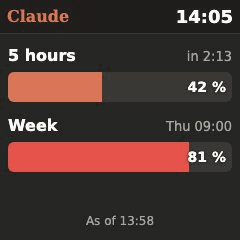
Your Claude plan limits: the 5-hour window and the week, each in percent with the time of the next reset | Claude Code on your computer sends them to the server (push) |
anthropic-api |
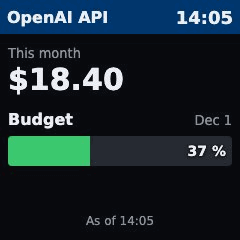
Claude API cost of the current month in USD, optionally against your own budget | The server asks the Anthropic Usage and Cost Analytics API with an Admin key |
openai-api |
OpenAI API cost of the current month in USD, optionally against your own budget | The server asks the OpenAI Costs API with an Admin key |
xai-api |
Prepaid credit balance of your xAI team in USD | The server asks the xAI Management API with a management key |
copilot |
GitHub Copilot usage of the month (AI credits or premium requests) against the allowance of your plan, which you enter yourself | The server asks GitHub's billing usage API with a read-only token |
For each limit there is a line with its name and the time of the reset on the right, and below it a wide bar with the value inside. The bar is green, orange from 75 % and red from 90 %.
Used or left: by default the bars count up, how much is used. With show: remaining they count down instead: the bar starts full at 100 % and drains towards 0 %, so 58 % means 58 % are still left. The color still follows what is used, so red always means little is left. More than used up shows 0 %, a window that has been reset shows 100 %, and for copilot the text shows what is left of the allowance, for example 88 / 300. xai-api has no bar, so the option changes nothing there.
Claude look: claude and anthropic-api appear in Claude's colors, dark like claude.ai: the title in Claude orange, orange bars that turn red from 75 % used. This happens automatically; the other providers keep the normal look.
For claude:
- Reset: less than a day away as
in 2:13(hours:minutes), otherwise as weekday and time, for exampleThu 09:00. If the reset time has already passed, the bar shows0 %andreset(withshow: remaining: a full bar and100 %). - Age: at the bottom the page always shows when the values arrived, for example
As of 13:58, orAs of Sat 13:58when they are from an earlier day. - No data yet: until the first values arrive the page shows the notice
No data yetwithSet up the status-line script. - No limit data: values arrived but without usable limits, for example after the
curltest under When something is wrong. The next answer of Claude Code brings the real values. Claude Code only has limits with a Claude plan (Pro or Max); with an API key the script sends nothing and the page stays onNo data yet. - If your plan has no weekly limit, only the 5-hour bar appears.
For anthropic-api, openai-api and xai-api:
- Amount: large in the middle, as
$18.40(This month) or, forxai-api,Balance. The month is the calendar month in UTC, the way the providers bill. - Budget: with
budget: 50a barBudgetappears below the amount, with the share of the budget already spent and the day it starts again (Dec 1). Above 100 % the bar stays full and the text shows the real value, for example120 %(withshow: remaining: an empty bar and0 %). - Age: at the bottom
As of 14:05shows when the server last got the values. Foranthropic-apiit is the time of Anthropic's data export, which is updated about every 4 hours. - Only every 5 minutes: cost data changes slowly. The server keeps a successful answer for 5 minutes, whatever
refreshsays. After a failure it asks again after 1 minute at the earliest. - No data: if the provider cannot be reached or refuses the key, the header turns red and the page shows
No datawith the time, never an old amount.
For copilot:
- Bar:
AI credits(orPremium requests) with used / allowance, for example1,234 / 1,500, and on the right the day the allowance starts again (Dec 1, GitHub resets on the 1st at 00:00 UTC). Above it, large, what isLeft. - Your allowance: GitHub's API reports only what you used, not how much your plan includes. You enter that yourself with
monthly_allowance, for example1500for Copilot Pro (see GitHub Copilot). - Only plans you pay yourself: usage of a Copilot seat that an organisation or company pays for is not in this API.
- Age, the 5-minute rhythm and
No datawork as for the cost providers.
What you need
For claude:
- A Claude plan (Pro or Max) and Claude Code on a computer in the same home network as the Glance Box server.
curlon that computer (macOS and Linux have it). On Windows, PowerShell is enough.- The script
tools/statusline/glancebox-statusline.sh(macOS, Linux) ortools/statusline/glancebox-statusline.ps1(Windows) from this repository on that computer.
For anthropic-api, openai-api and xai-api:
- An organisation (Anthropic, OpenAI) or a team (xAI) with API billing, and the right to create an Admin or management key there.
- Internet access for the Glance Box server.
For copilot:
- A Copilot plan you bought yourself (Pro, Pro+ or Max) on your GitHub account.
- A fine-grained personal access token with the read permission
Plan(see GitHub Copilot). - Internet access for the Glance Box server.
Claude Code hands a small JSON text to its status line after every answer. It includes your limits (rate_limits). The script passes this text on to the server in the background and then shows your normal status line.
Example
- type: ai
  provider: claude
  lang: en
  refresh: 30
For the API costs, with the key in .env (see Setup):
- type: ai
  provider: openai-api
  key: ${OPENAI_ADMIN_KEY}
  budget: 50
  lang: en
Options
| Key | Default | Meaning |
|---|---|---|
provider |
Where the values come from: claude, anthropic-api, openai-api, xai-api or copilot. Required. |
|
key |
Only anthropic-api, openai-api, xai-api, copilot, and required there: the Admin or management key, for copilot the GitHub token. Always as ${NAME} from .env, never written into config.yaml. |
|
budget |
none | Only anthropic-api and openai-api: your monthly budget in USD, a positive number such as 50. Adds the Budget bar. |
team_id |
Only xai-api, and required there: the ID of your xAI team. |
|
username |
Only copilot, and required there: your GitHub user name. |
|
monthly_allowance |
Only copilot, and required there: how much your plan includes per month, a positive number such as 1500. |
|
unit |
ai-credits |
Only copilot: ai-credits (usage-based billing, the normal case) or premium-requests (an annual plan that stayed on premium requests). |
show |
used |
used: the bars show how much is used. remaining: they show how much is left (100 % → 0 %). See What it shows. |
title |
name of the provider (Claude, Anthropic API, OpenAI API, xAI API, GitHub Copilot) |
Header text. |
lang |
top-level lang |
de or en. Sets all texts on the page. |
refresh |
refresh default |
For claude we recommend 30. The page only reads what arrived, so this costs nothing. For the API providers the server keeps a successful answer for 5 minutes anyway. |
duration |
interval |
How many seconds the page stays on the display. |
Setup
Claude
- Key for the server. Create a key with
openssl rand -hex 24and put it in.envnext todocker-compose.yml:
GLANCEBOX_PUSH_KEY=<the key>
In config.yaml add at the top level:
push_key: ${GLANCEBOX_PUSH_KEY}
-
The page. Add the example to the
pages:list inconfig.yamland rundocker compose up -d(a plainrestartdoes not read.envagain). -
Settings on your computer. Create the file
~/.config/glancebox/push.envwith the address of the server and the same key, and make it readable only for you:
mkdir -p ~/.config/glancebox
cat > ~/.config/glancebox/push.env <<'EOF'
GLANCEBOX_URL=http://192.168.1.10:8080
GLANCEBOX_PUSH_KEY=<the key>
EOF
chmod 600 ~/.config/glancebox/push.env
Use your server's address in the home network. If XDG_CONFIG_HOME is set, the file goes to $XDG_CONFIG_HOME/glancebox/push.env.
-
The script. Copy
tools/statusline/glancebox-statusline.shto a place of your choice, for example~/.claude/glancebox-statusline.sh, and make it executable withchmod +x. -
Claude Code. Add to
~/.claude/settings.json:
{
  "statusLine": {
    "type": "command",
    "command": "~/.claude/glancebox-statusline.sh"
  }
}
The script itself prints nothing, so the status line stays empty.
- Check. Ask Claude Code something. After the answer, open
http://<server>:8080/and wait for the next refresh of the page (up to 30 seconds).
Keeping your own status line
If you already have a status line, pass its command to the script as arguments. The script hands it the same JSON, and its output stays your status line:
{
  "statusLine": {
    "type": "command",
    "command": "~/.claude/glancebox-statusline.sh ~/.claude/my-statusline.sh"
  }
}
Windows
- Create
%APPDATA%\glancebox\push.envwith the same two lines as in step 3. - Copy
tools\statusline\glancebox-statusline.ps1, for example to%USERPROFILE%\.claude\. - In
%USERPROFILE%\.claude\settings.json:
{
  "statusLine": {
    "type": "command",
    "command": "powershell -NoProfile -ExecutionPolicy Bypass -File C:/Users/<you>/.claude/glancebox-statusline.ps1"
  }
}
Write the path with forward slashes /: Claude Code may run the command through Git Bash, which swallows backslashes. An existing status line goes at the end of the command, as above. With Git Bash installed you can also use the .sh script as on macOS.
Limits
- The values only update while Claude Code runs and gives answers, and only while your computer is in your home network. Away from home the sending fails silently and the page keeps showing the last values with their time (
As of 13:58). - The server keeps the values in RAM only. After a restart of the server the page shows
No data yetuntil Claude Code gives its next answer. - A new Claude Code session sends its limits only after its first answer.
Anthropic API
Warning: an Anthropic Admin key controls the whole organisation: members, workspaces, all API keys and their limits. Whoever has it can do anything in the organisation, not only read costs. Use it only for an organisation that holds nothing else (a separate organisation just for this) or skip this provider.
- Sign in to the Claude Console as an organisation admin, open the Admin keys page, click Create admin key, give it a name and an expiry date. Copy the key (it starts with
sk-ant-admin01-and is shown only once). Console Admin keys have no scopes to choose: every key has full access. - Put it in
.envnext todocker-compose.yml:
ANTHROPIC_ADMIN_KEY=sk-ant-admin...
- Add the page to
config.yamland rundocker compose up -d:
- type: ai
  provider: anthropic-api
  key: ${ANTHROPIC_ADMIN_KEY}
  budget: 50   # optional
On a Claude Enterprise organisation the primary owner can instead create a key with only the read:analytics scope (claude.ai → Organization settings → API). It can only read reports and is the much safer choice; it goes into ANTHROPIC_ADMIN_KEY the same way.
The page uses the Usage and Cost Analytics API (/v1/organizations/analytics/cost), which replaces the older Cost API. Admin keys only exist for Claude Console organisations, not for individual accounts or the claude.ai Team plan.
OpenAI API
- On the Admin keys page create a new Admin key. Only organisation owners can do this. Give it the narrowest permission the page offers: Read only, or restricted to read access for usage and costs if that choice is there. Never pick full access just for this display.
- Put it in
.env:
OPENAI_ADMIN_KEY=sk-admin-...
- Add the page:
- type: ai
  provider: openai-api
  key: ${OPENAI_ADMIN_KEY}
  budget: 50   # optional
A normal project API key does not work; the Costs API needs an Admin key.
xAI API
- In the xAI Console open Settings → Management Keys and create a key. Your account needs the
Management Keyspermission (read and write); otherwise ask the team admin. The management key is separate from the API key you use for Grok. - Copy your team ID from the team settings page of the console (
console.x.ai/team/default/settings/team). - Put both in
.env:
XAI_MANAGEMENT_KEY=...
XAI_TEAM_ID=...
- Add the page:
- type: ai
  provider: xai-api
  key: ${XAI_MANAGEMENT_KEY}
  team_id: ${XAI_TEAM_ID}
A management key can manage the team's API keys and billing, so treat it like a password.
GitHub Copilot
- On GitHub open Settings → Developer settings → Personal access tokens → Fine-grained tokens and click Generate new token. Give it a name and an expiry date. Under Permissions → Account permissions set Plan to Read-only and add nothing else. The token can then read your plan and billing usage, but no code and no settings.
GitHub's docs disagree here: the API reference says a fine-grained token with Plan (read) works, a tutorial says these endpoints need a classic token. Try the fine-grained token first. Only if the page stays on No data and the log shows HTTP 403, use a classic token (Personal access tokens → Tokens (classic)). GitHub's docs do not name the scope it needs; ask GitHub with curl -sI -H "Authorization: Bearer <token>" https://api.github.com/users/<name>/settings/billing/ai_credit/usage and read the line X-Accepted-OAuth-Scopes, then give the token only that scope and an expiry date. Warning: a classic token's scopes apply to all your repositories and organisations, so it grants far more than the fine-grained token.
2. Put the token and your user name in .env:
GITHUB_COPILOT_TOKEN=github_pat_...
GITHUB_USER=your-name
- Look up how much your plan includes per month on Plans for GitHub Copilot or on your billing page. In November 2026 Copilot Pro includes 1,500 AI credits, Pro+ 7,000 and Max 20,000. An annual Pro plan that stayed on premium requests has 300 per month (Pro+: 1,500); then set
unit: premium-requests. - Add the page:
- type: ai
  provider: copilot
  key: ${GITHUB_COPILOT_TOKEN}
  username: ${GITHUB_USER}
  monthly_allowance: 1500
  # unit: premium-requests   # only for an annual plan on premium requests
The page uses GitHub's billing usage API (/users/{username}/settings/billing/ai_credit/usage or .../premium_request/usage). GitHub has no documented API that reports how much your plan includes; that is why you enter monthly_allowance yourself. Part of the allowance (the flex share) can change over time, so check the number now and then. A Copilot seat paid by an organisation or company does not show up here.
Privacy & security
- Only
rate_limitsis stored. The status-line JSON also contains things like the working folder and the session ID. The server drops everything exceptrate_limitsstraight away, writes nothing to disk and does not log the content. - No Anthropic token leaves your computer. The script only sends the text Claude Code gives the status line, with the Glance Box key. The server never logs in to Anthropic.
- The push key only lets someone send values to your display. Keep it in
.envon the server and inpush.env(chmod 600) on your computer, never inconfig.yaml. - The server and its push inbox are meant for your home network only. Do not make them reachable from the internet.
- API keys (
anthropic-api,openai-api,xai-api) are powerful: they can do far more than read costs. The GitHub token forcopilotonly needs the read permissionPlan; give it nothing more (a classic fallback token only the one scope GitHub names). Keep them in.envonly, write${NAME}inconfig.yaml, and never share.env. The server sends them only to the provider, in a request header, and never writes them to its log. It keeps the amounts in RAM for 5 minutes and stores nothing on disk.
When something is wrong
No data yetstays: Claude Code only sends limits with a Claude plan (Pro or Max) and in recent versions. With an API key instead of a plan, or with an older Claude Code, the script sends nothing and the page stays onNo data yet; nothing else is wrong then. Otherwise check thatpush_keyis set and that you randocker compose up -dafter changing.env. Then test the way from your computer to the server:curl -i -X POST -H "Authorization: Bearer <the key>" -H "Content-Type: application/json" -d '{"rate_limits":{}}' http://<server>:8080/api/v1/push/claude.204is right (the page then showsNo limit datauntil the next answer of Claude Code),401means the key differs,404means the server has nopush_key. Ifcurlworks, checkpush.env(both lines, no spaces around=) and the path insettings.json.No limit data: a push arrived but without usable limit windows, for example thecurltest above with{"rate_limits":{}}. The next answer of Claude Code replaces it with the real values.- The status line is empty: that is normal without your own status line. To show one, pass its command as arguments.
No datawith a red header (API providers): the provider could not be reached or refused the request. The server log has a line likeai openai-api: no data: HTTPError (HTTP 401).401or403means the key is wrong, expired or lacks the permission; check.envand rundocker compose up -dafter changing it. Forxai-apia404usually means a wrongteam_id. Forcopilota403means the token lacks the permissionPlanor GitHub does not accept a fine-grained token for your account; then try a classic token as described in GitHub Copilot. A404means a wrongusername. The page tries again on its next refresh.- The Anthropic amount looks low: Anthropic updates the cost data about every 4 hours;
As ofshows the time of the data. - The server refuses to start and names
key,team_idorbudget:key(andteam_idforxai-api) must be set and not empty, for example because the variable is missing in.env;budgetmust be a positive number and only works withanthropic-apiandopenai-api. - The server refuses to start and names
username,monthly_allowanceorunit(copilot):usernamemust be set,monthly_allowancemust be a positive number, andunitis eitherai-creditsorpremium-requests. copilotshows0used although you use Copilot: the API only counts a plan you pay yourself. Check also thatunitmatches your billing: since June 2026 monthly plans use AI credits.- The server refuses to start and names
provider: the value must be one of the providers in the table above.